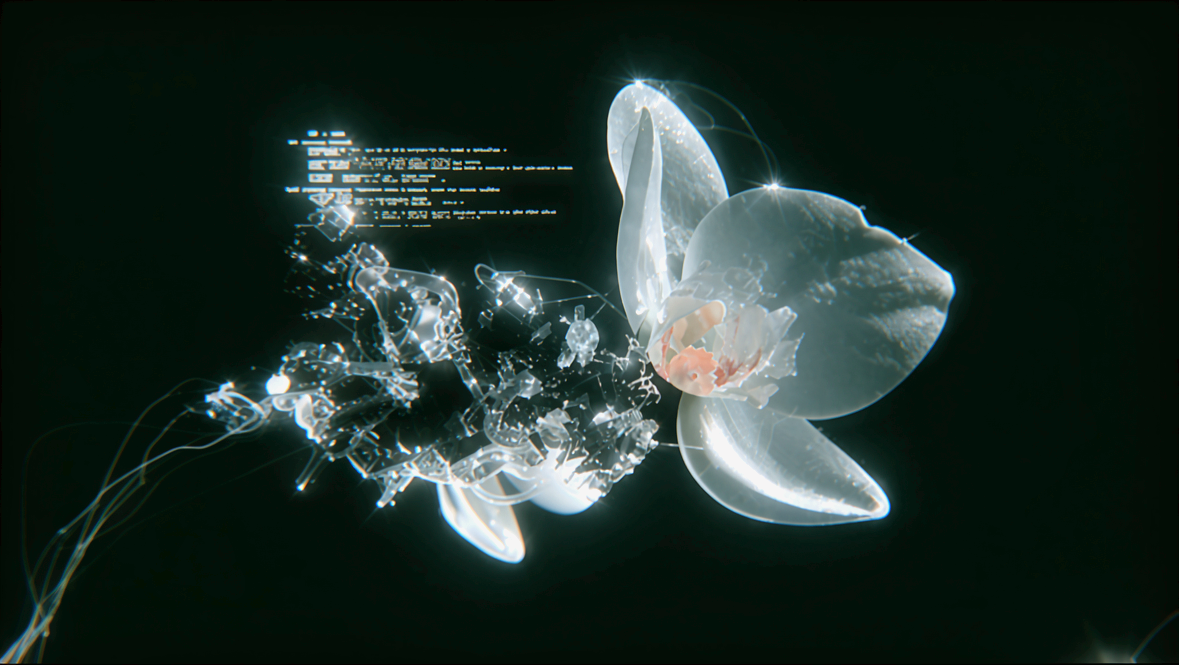

The OmniGen2 Image Edit workflow is designed to enhance and transform images using natural language instructions. Leveraging the powerful OmniGen model, this workflow enables users to apply complex edits such as texture transformations and lighting effects with ease. The workflow incorporates several key nodes including CLIPTextEncode for interpreting text prompts, VAEDecode for generating the final image, and SaveImage for outputting the result. By utilizing nodes like ImageScaleToTotalPixels and RandomNoise, the workflow ensures that image transformations are both precise and creative.
Technically, the workflow operates by first loading the necessary models and preparing the image for editing. The CLIPLoader and UNETLoader nodes facilitate the loading and processing of image data, while the DualCFGGuider and SamplerCustomAdvanced nodes provide advanced control over the sampling process. This workflow is particularly useful for artists and designers looking to quickly iterate on image concepts or for anyone needing to make detailed image edits without extensive manual effort.
API
Use this workflow from code
Every Comfy workflow is a JSON graph. The payload below is this workflow, exactly as ComfyUI runs it — fetch it from the URL, keep it in version control, or load it in ComfyUI and run it node by node.
GET https://comfy.org/workflows/download/5615df5d2e0d.jsonFetching workflow JSON…
Run it from Python or TypeScript with the Comfy SDK. The same code targets Comfy Cloud or a ComfyUI you host yourself — only the base URL changes.
# Install (beta)
pip install comfy-sdk        # Python
npm i @comfyorg/sdk          # TypeScript

# Run "OmniGen2 Image Edit" (Python)
from comfy_sdk import Comfy

client = Comfy(api_key="comfyui-...")

# This workflow, exported in API format (see note below)
wf = client.workflows.from_file("image_omnigen2_image_edit_api.json")

asset = client.assets.from_file("input.png")
wf.set_input("16", "image", asset)  # LoadImage

wf.set_input("7", "text", "your prompt here")  # CLIPTextEncode

job = client.run(wf)
for output in job.get_outputs("9"):  # SaveImage
    output.to_file(output.name)
The SDK takes a workflow in API format: open this workflow in ComfyUI and use File → Export Workflow (API). API access requires a Comfy Cloud plan with an API key. SDK docs · Get an API key
FAQ